
Someone says “Let’s meet Thursday at 2pm.” You pause. Their 2pm or your 2pm? You open a new tab. You Google “EST to PST.” You double-check the conversion. You send a tentative time. They respond: “Actually, I meant 2pm YOUR time, not mine.” You start over.
Timezone math is exhausting. The back-and-forth emails waste time. And when you get it wrong, you either miss the meeting or show up an hour early looking confused.
Here’s how to schedule meetings across time zones without the confusion, delays, or errors.
Why Scheduling Across Time Zones Is Challenging
The real problems aren’t just about math. It’s the mental burden of converting EST to IST to CET manually. It’s the email ping-pong of “Wait, did you mean 3pm YOUR time or MY time?” It’s the daylight saving confusion when not all countries change their clocks on the same dates.
And the consequences are real. You miss meetings because you converted wrong. You waste 5-10 minutes per meeting just coordinating the time. You look unprofessional when you show up at the wrong hour.
This isn’t a minor inconvenience anymore. Remote work is the norm now. Teams are regularly distributed across 3, 4, 5 timezones. Sales teams lose deals because they’re slow to respond. Recruiters lose candidates who ghost them due to scheduling delays. Executive assistants waste their exec’s time on coordination instead of strategy.
Speed matters. And timezone confusion kills speed.
Methods To Schedule Meetings Across Time Zones
Method 1: Manual Timezone Conversion
This is what most people do. You Google “PST to EST converter” or use World Time Buddy. You manually calculate overlapping work hours. You propose times via email. You wait for a response. If they counter-propose, you repeat the process.
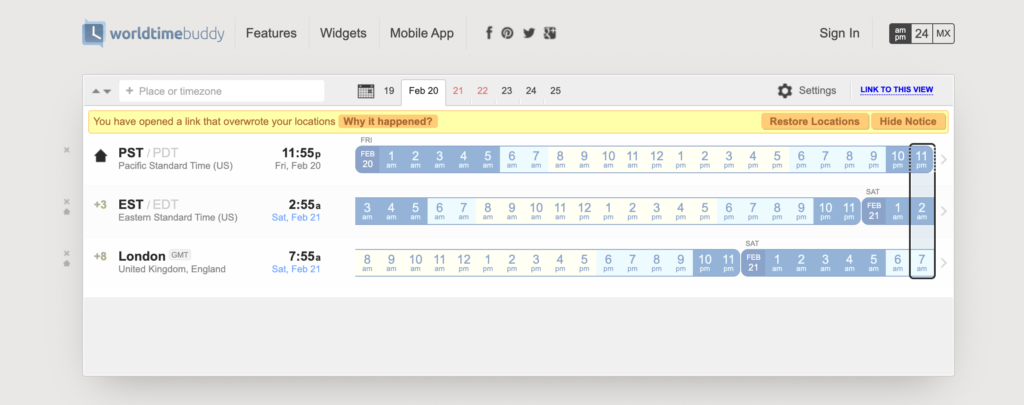
How it works
Step 1: Open a timezone converter website in a new tab.
Step 2: Input your timezone and their timezone.
Step 3: Find overlapping work hours by looking at both timezones side by side.
Step 4: Propose times via email, specifying both timezones.
Step 5: Wait for response. If they counter-propose, go back to Step 1.
Limitations
This takes 5-7 minutes per meeting. You have to switch tabs away from your calendar. It’s error-prone because it’s easy to forget AM/PM or miss daylight saving time changes. The converter doesn’t know your actual calendar availability, so you still have to manually check your calendar separately. And you do this manual process every single time you schedule a meeting.
Method 2: Use Overlappr with Google Calendar for Instant Timezone Scheduling
If you schedule across time zones more than once a week, this is the fastest method. It eliminates all the friction from manual conversion.
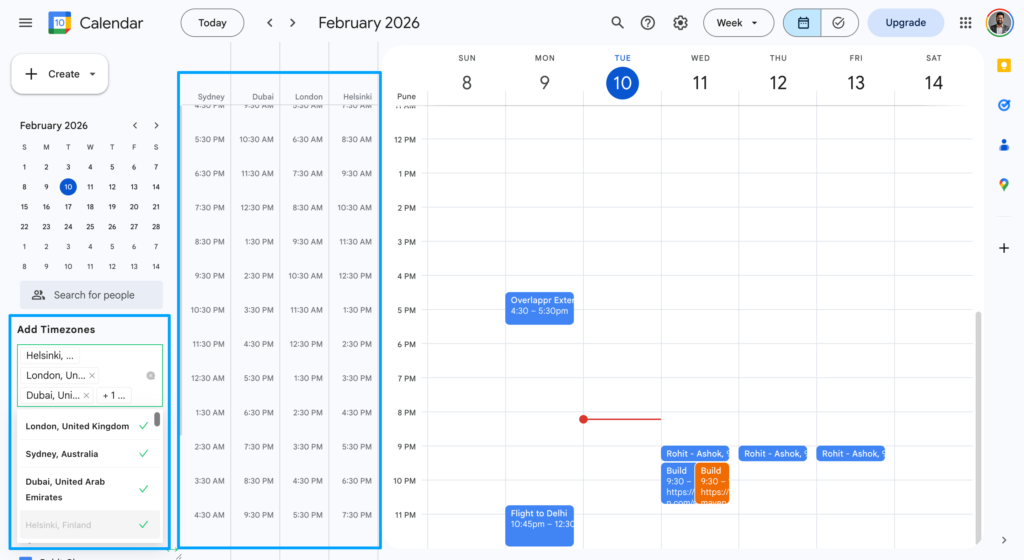
How it works
Step 1: Install the Overlappr Chrome extension. Takes about 5-10 seconds. Go to the Chrome Web Store, search for “Overlappr,” and click “Add to Chrome.”
Step 2: Connect to Google Calendar. One-time setup. The extension asks for permission to access your calendar. Click “Allow.”
Step 3: Add the time zones you need. Just type city names. Type “Tokyo” and Tokyo time appears. Type “London” and the London time appears. No timezone codes to remember. Add unlimited time zones, not limited to 2 like Google Calendar’s native feature.
Step 4: See all time zones overlaid on your calendar. Get instant visual clarity. You can see “It’s 3pm for me, 8pm in London, 11pm in Singapore” all at once. You see when everyone is actually available with work hours overlapping. No mental math required.
Step 5: Share availability in their timezone with 3 clicks. Select your free slots in the calendar. Choose their timezone from the dropdown. Copy and paste into your email or Slack message. Done.
Step 6: When they propose a time in an email, Overlappr auto-detects it. If someone emails “Can we meet Feb 15th at 3pm PST?”, Overlappr automatically detects the date, time, and timezone from your Gmail. It shows you any conflicting meetings instantly. One click creates the event with all details pre-filled.
Why using the Overlappr method is superior
Speed: From email to confirmed meeting in seconds, not minutes. No tab switching. No manual conversion.
Zero errors: No manual conversion means no mistakes. Overlappr handles daylight saving time automatically.
Calendar-integrated: You see your actual availability, not just timezone conversions. World Time Buddy shows you what time it is in different places, but it doesn’t know when YOU’RE free.
Works in your workflow: Chrome pop-up means you don’t have to leave your email or calendar. Click the Overlappr icon in your browser toolbar and see today’s meetings, available slots, and all your time zones.
Handles complexity easily: Need to coordinate across 5 time zones? Add all 5. Google Calendar’s native feature limits you to displaying 2 time zones at once. Overlappr lets you add as many as you need.
Eliminates email ping-pong: Share exact availability in any timezone upfront. No more “Does Tuesday work?” followed by “What time?” followed by “Oh wait, which timezone?”
Specific advantages over alternatives: Overlappr gives you unlimited time zones while Google Calendar’s native feature only allows 2. You can search by city name instead of scrolling through timezone codes. Unlike World Time Buddy, it’s integrated with your actual calendar availability. Unlike Calendly, you don’t need a separate booking page. And compared to manual email coordination, it’s 3 clicks instead of 10 minutes.
Method 3: Use Scheduling Link Tools (Calendly, Cal.com)
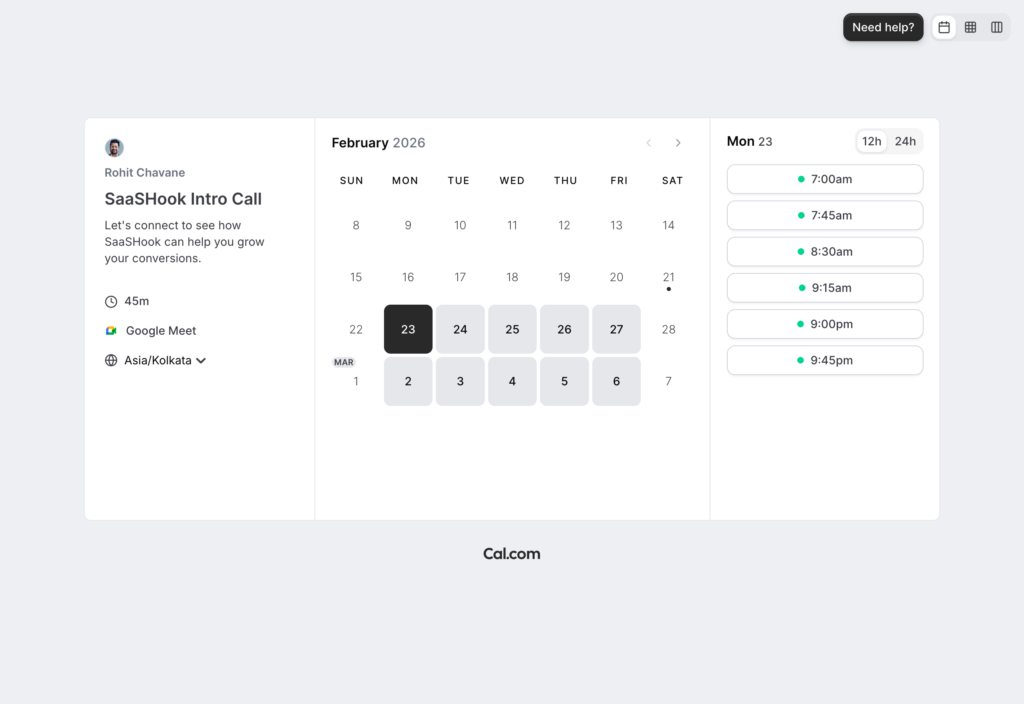
Send a booking page link. The recipient picks a time in their timezone. The meeting auto-confirms.
When to use this: External meetings with people you don’t know well. High-volume scheduling like recruiting or sales demos. When you want to be completely hands-off.
Limitations: Requires a separate subscription. Feels impersonal for internal team meetings. You can’t see time zones while looking at your calendar. It doesn’t help when someone proposes a time TO you. It only works when you send the link first.
Method 4: Google Calendar’s “Find a Time” Feature
When creating an event, Google Calendar shows you when attendees are free. Works if everyone’s calendars are shared with you.
How to use: Click “Find a time” in the event creation window. Google shows overlapping free slots. Pick a time that works for everyone.
Limitations: Only works if attendees share calendars with you. That’s often not the case for external meetings or people outside your organization. It doesn’t show time zones visually. It doesn’t help when someone emails you a proposed time. And it’s limited to people in your Google organization.
Practical Tips for Timezone Scheduling Success
Tip 1: Always Specify the Timezone AND the City
The problem: “CST” could mean Central Standard Time (US), China Standard Time, or Cuba Standard Time. The fix: Say “3pm CST (Chicago)” or “3pm China time.” Overlappr solves this by letting you type city names directly. No ambiguity.
Tip 2: Use 24-Hour Format to Avoid AM/PM Confusion
The problem: “8:00 PST” could be morning or evening. The fix: Use “08:00 PST” or “20:00 PST.” Overlappr shows times in the recipient’s preferred format automatically.
Tip 3: Add Multiple Time Zones to Your Calendar Permanently
The problem: If you regularly work with a London team, Tokyo client, and New York office, you’re doing timezone conversions daily. The fix: Add all three time zones to your calendar view so you see them constantly. Overlappr lets you add unlimited time zones. Google Calendar limits you to 2.
Tip 4: Propose 2-3 Options in THEIR Timezone
The problem: Proposing a single time means more back-and-forth if it doesn’t work. The fix: Say “I’m available Tuesday 10am, Wednesday 2pm, or Thursday 3pm London time.” Give them options. Overlappr makes this easy. Copy-paste your availability in any timezone with 3 clicks.
Tip 5: Double-Check During Daylight Saving Transitions
The problem: The US changes clocks in March. The EU changes in late March or early April. Some countries don’t change at all. The fix: Extra verification during March-April and October-November. Overlappr handles this automatically. City-based time zones auto-adjust for daylight saving.
Tip 6: Block “Focus Time” Based on Global Team Hours
The problem: If your team spans Tokyo to San Francisco, someone is always working. You could get meeting requests 24/7. The fix: Protect certain hours as “no meeting” zones. With Overlappr, you can see all time zones at once to find fair meeting windows that don’t make anyone join at 2am.
Tip 7: When Traveling, Don’t Change Your Calendar’s Primary Timezone
The problem: If you change your primary timezone while traveling, it messes up all your recurring meetings when you return home. The fix: Keep your primary timezone as your home timezone. Create individual events in the local timezone as needed. Overlappr makes it easy to see both your home timezone and your current location timezone simultaneously.
Common Mistakes to Avoid
Mistake 1: Assuming Everyone Knows Your Timezone. Always state your timezone explicitly, even in internal team emails.
Mistake 2: Using Timezone Abbreviations Without Context. Don’t say “EST” and assume everyone knows which EST you mean. Use city names or full timezone names.
Mistake 3: Not Confirming Understanding After Proposing Time. Add clarification like “Does 2pm PST (which is 5pm EST for you) work?” The extra parenthetical takes two seconds and prevents confusion.
Mistake 4: Scheduling Too Close to Daylight Saving Change Dates. Build in a buffer during transition weeks. If possible, avoid scheduling critical meetings the week of clock changes.
Overlappr eliminates most of these errors automatically. Visual clarity means you see exactly when meetings are happening in every timezone. Auto-detection means you don’t manually convert anything. No manual conversion means no mistakes.
Schedule Smarter, Not Harder
Scheduling across timezones doesn’t have to mean 10 minutes of Googling, email ping-pong, and timezone math for every single meeting.
With the right method, you can go from “Can we meet?” to a confirmed calendar invite in seconds. You see all your timezones at once. You share availability in any timezone with 3 clicks. Proposed times in emails are auto-detected. You never make a timezone conversion error again. And it all works right in your browser, no separate apps or tabs.
Try Overlappr free for 14 days. No credit card required. If you schedule across time zones even once a week, you’ll save hours of frustration and eliminate timezone errors completely.
Add Overlappr to Chrome – Start Your Free Trial
Frequently Asked Questions
How do I schedule a meeting when someone proposes a time in their timezone?
The frustrating part is when you receive an email saying “Let’s meet Tuesday at 3pm” with no timezone specified. You don’t know if that’s 3pm their time or yours. You have to reply asking for clarification, which delays everything. Overlappr solves this with a time detection. It auto-detects the date, time, and time zone from the email or message text. It immediately shows you any conflicting meetings. One click creates the calendar event with all details pre-filled. You go from email to confirmed meeting in seconds.
What’s the easiest way to share my availability across time zones?
The manual method is opening your calendar, looking at your free slots, mentally converting each one to their timezone, and typing them all into an email. This takes 10+ minutes and you’re prone to errors. Overlappr’s copy-paste availability feature does this in 3 clicks. Select your free slots in the calendar. Pick their timezone from the dropdown. Copy and paste into your message. Done. The times are automatically formatted in their timezone.
How many time zones can I add to Google Calendar?
Google Calendar’s native feature lets you display only 2 time zones maximum: your primary timezone and one secondary timezone. If you work with teams in New York, London, Singapore, and Sydney, you’re limited to picking just two. Overlappr lets you add unlimited time zones to Google Calendar. Add every timezone you care about. If you have calls scheduled across five different countries this week, add all five. They all appear in your calendar sidebar, lined up with your actual events.
Should I use a scheduling link or share specific times?
It depends on context. Scheduling links (Calendly, Cal.com) can feel impersonal for team meetings or colleagues you know well. They’re great for high-volume external scheduling like sales demos or recruiting calls. But for internal meetings, one-on-one check-ins, or anyone you have an existing relationship with, sharing specific available times feels more personal and collaborative. Overlappr makes sharing specific times as fast as sending a scheduling link. Three clicks and you’ve copied your availability to any time zone. So you get the speed of a booking page with the personal touch of direct communication.