Google Calendar is the backbone of how millions of professionals manage their day. But out of the box, it leaves a lot to be desired; no timezone scheduling for global teams, no way to mark events as completed, no SMS reminders for clients, no time tracking, no smart weekly planning.
That’s where extensions and add-ons come in.
We researched 8 Chrome extensions and 3 Google Workspace add-ons that genuinely improve what Google Calendar can do. Every piece of information below comes directly from official developer websites, Chrome Web Store listings, and Google Workspace Marketplace pages.
Quick Overview: 11 Google Calendar Extensions & Add-ons at a Glance
| No. | Tool | Type | Best For | Starting Price |
|---|---|---|---|---|
| 1 | Overlappr | Chrome Extension | Timezone scheduling, sharing availability, Gmail date & time detection | $5/month (14-day free trial) |
| 2 | Checker Plus for Google Calendar | Chrome Extension | Calendar notifications & quick access without opening Google Calendar | Free (voluntary contribution) |
| 3 | Tackle | Chrome Extension + Workspace Add-on | Time tracking, productivity analytics, team reporting | Free forever plan; paid from $30/mo (annual) |
| 4 | GCalPlus | Chrome Extension | Power-user UI customization and calendar insights | Free |
| 5 | Shade Calendar | Chrome Extension | Visual time blocking with color-coded shading | Free |
| 6 | Google Calendar Event Checker | Chrome Extension | Marking events as completed or cancelled | Free (premium plan available) |
| 7 | Agenda Hero | Chrome Extension | Converting text, images, and PDFs into calendar events via AI | Free |
| 8 | Calendar Automator | Chrome Extension | AI-powered weekly planning and task scheduling | Free |
| 9 | Reclaim.ai | Google Workspace Add-on | AI scheduling, focus time, habits, and smart meetings | Free plan; paid from $8/user/mo (annual) |
| 10 | SyncThemCalendars | Google Workspace Add-on | Cross-platform calendar sync (Google, Outlook, Apple) | From $3.99/month (annual) |
| 11 | SMS Reminder for Google Calendar | Google Workspace Add-on | Sending SMS appointment reminders to clients | Free (25 reminders); paid from $19/month |
Best Chrome Extensions for Google Calendar
1. Overlappr: Best Extension for Timezone Scheduling
If you work with people across multiple time zones, whether you’re an executive assistant, a salesperson with global prospects, a recruiter coordinating international interviews, or part of a distributed team, Overlappr is the most useful Chrome extension you can add to Google Calendar today.
Google Calendar natively supports only two timezone views. Overlappr removes that limit entirely. You can add any number of time zones to your calendar sidebar, see everyone’s working hours at a glance, and share your availability in one click — in whatever timezone your recipient is in. No mental math, no tab-switching, no conversion errors.
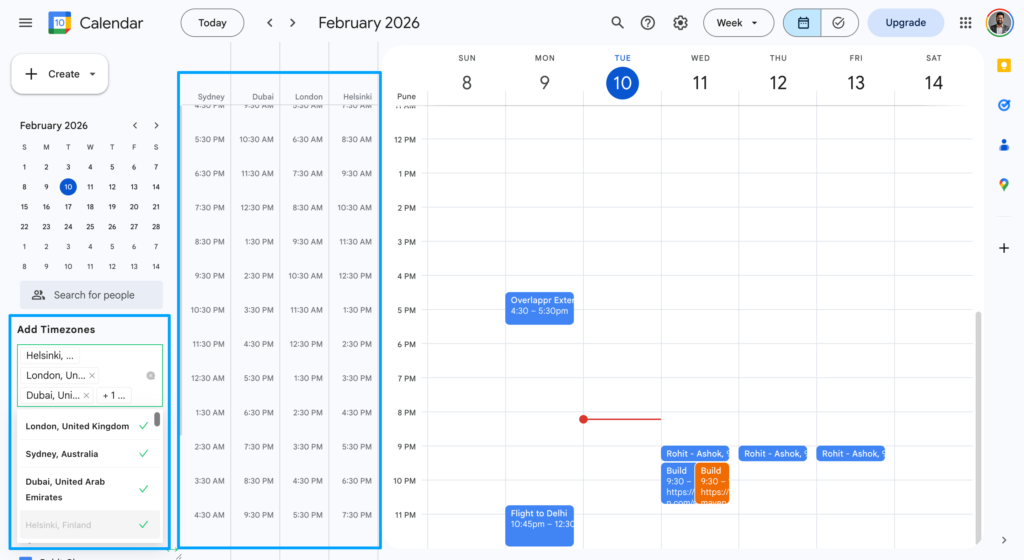
The standout feature is the Chrome toolbar popup: a single click shows you today’s full schedule, available time slots, and a one-click join button for every meeting — all without opening Google Calendar.
The newer Date & Time Detection feature takes things further. When someone emails you a proposed meeting time (“Can we connect Feb 7th at 4:30 PM PST?”), you select the text and Overlappr auto-detects the date, time, and timezone. Works in Gmail, Slack or anywhere you work. It shows whether you have a conflict, previews the event in your calendar grid, and lets you create the event in one click, with guest details pre-filled.

Key Features
- Unlimited timezone sidebar view (Google Calendar’s native limit is 2)
- Chrome toolbar popup: today’s meetings, available slots, and meeting join links — without opening Google Calendar
- One-click meeting join from the pop-up (Zoom, Google Meet, Teams, and others)
- Copy-paste availability sharing: select free slots, pick any timezone, copy and paste into any message
- Date & Time Detection: select a proposed time in an email, Slack etc. see conflicts, preview in calendar, create event in one click with guests pre-filled
- Zero learning curve, fully usable within 2–3 minutes of install
- Read-only access to Google Calendar (does not modify events without your action)
- Calendar data processed locally; only your name and email are stored for authentication
Pricing
| Plan | Price | Details |
|---|---|---|
| Free Trial | $0 | 14-day trial, no credit card required |
| Pro | $5/month | Full access to all features; 30-day money-back guarantee |
Limitations
- Google Calendar only (Outlook support is on the roadmap)
- Chrome browser only
Best for: Executive assistants, SDRs and AEs, recruiters, and anyone who schedules across timezones daily and needs a fast, no-friction workflow.
2. Checker Plus for Google Calendar: Best for Notifications & Quick Access
Checker Plus has been one of the most popular Google Calendar Chrome extensions for years — and with over a million users, it has earned that reputation. The core idea: full calendar access from any browser tab, without ever opening Google Calendar.
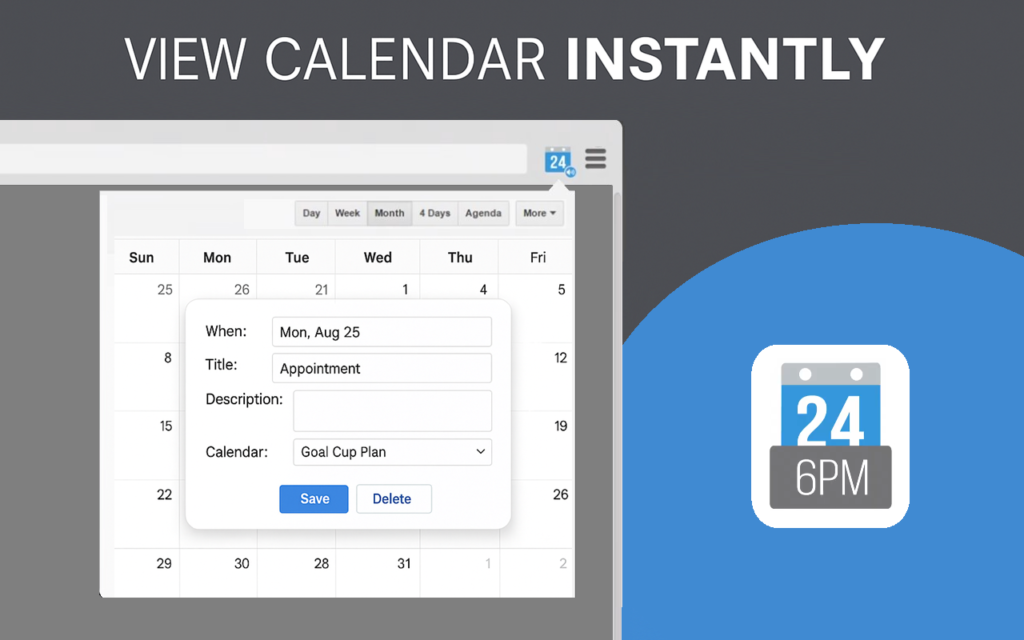
What sets it apart is the notification system. You get Outlook-style desktop pop-ups with snooze and voice alerts that work even when your browser is minimized. Combined with natural language event creation, drag-and-drop support in the pop-up view, and offline reminders, it’s one of the most complete calendar companions available.
Key Features
- Desktop pop-up notifications with snooze and voice alerts (Outlook-style)
- Add events via natural language (e.g. “Lunch with Mom 11am Sunday”), right-click from any webpage, Chrome address bar keyword, or Facebook event import
- Multiple popup views: month, week, day, agenda, year, or custom layout
- Drag and drop events in the calendar popup view
- Offline reminders when you’re not connected to the internet
- Google Tasks support
- Supports Birthday and Family calendars
- Custom CSS themes for visual customization
- Shows next event countdown on the extension icon
- 1,000,000+ users
Pricing
| Plan | Price | Details |
|---|---|---|
| Free | $0 | Core features available at no cost |
| Advanced features | Pay what you want | One-time voluntary contribution via jasonsavard.com unlocks the full feature set |
Limitations
- Most advanced features require a paid contribution
- No built-in timezone management
- Settings UI is somewhat dated compared to newer extensions
Best for: Anyone who lives in their browser and wants frictionless calendar access, reminders, and event creation without leaving their current tab.
3. Tackle: Best for Time Tracking and Productivity Analytics
Tackle answers a question most professionals never think to ask until it’s too late: “Where is my time actually going?” It integrates directly with Google Calendar (and Microsoft Outlook) and turns your existing events into time-tracking data — no separate timers, no manual logging.
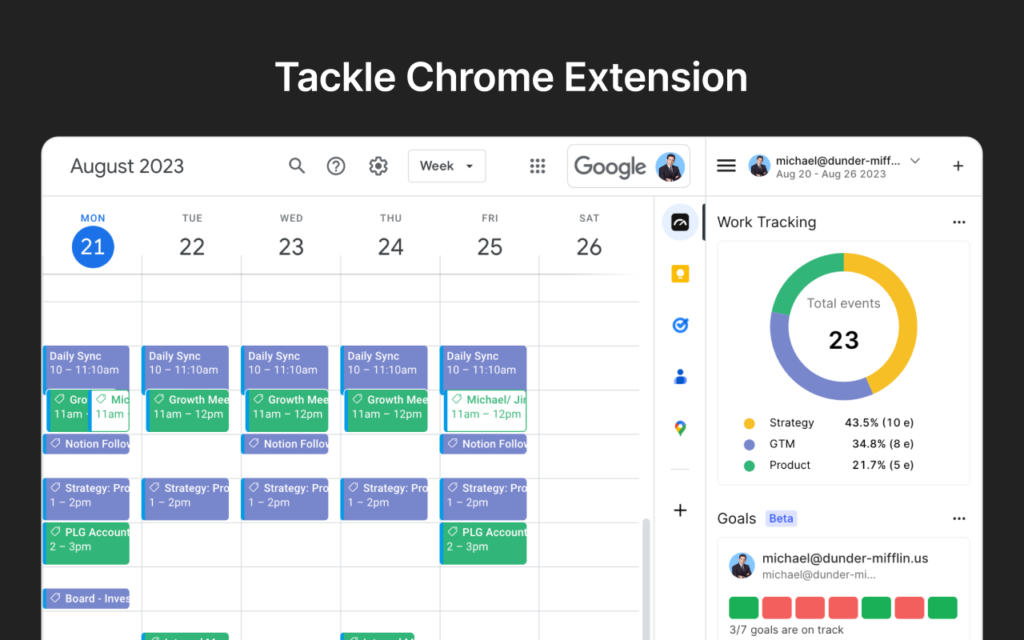
You connect your calendar, set up custom tags and categories (Work, Clients, Projects, Deep Work, Meetings, Billable, etc.), and Tackle does the rest. The AI-powered tagging system learns your patterns and automates repetitive categorization. You get dashboards, charts, exportable reports, and goal-tracking features — all from your calendar data.
It is SOC 2 Type 2 certified, which matters for teams handling sensitive client data. Particularly popular with executive assistants, agencies, pre-sales teams, and chiefs of staff.
Key Features
- Time tracking directly from Google Calendar and Outlook — no manual timers
- AI-powered custom tags and categories (Work, Clients, Projects, Billable/Non-billable, and more)
- Workflow builder to automate repetitive tagging rules
- Custom charts, analytics dashboards, and reports
- Export to Google Sheets or Excel
- In-browser stopwatch for manual time entries
- Time-based goal alignment (Premium and above)
- API integration (Premium and above)
- Integrations with Slack, Zoom, Todoist, Asana, Jira, ClickUp, Linear, and Raycast
- SOC 2 Type 2 certified
- Available as Chrome extension, Firefox extension, and Google Workspace add-on
Pricing
| Plan | Monthly | Annual (per month) | Key Limits |
|---|---|---|---|
| Free | $0 | $0 | Current month only, 1 calendar, 10 lifetime exports, 10 automations |
| Standard | $39 | $30 | 6 months history, 3 calendars included, 50 automations, up to 10 seats |
| Premium | $57 | $45 | 3 years history, 200 automations, API access, up to 20 seats |
| Enterprise | Custom | Custom | Unlimited calendars, workspaces, automations, and integrations |
Note: Additional calendars beyond the 3 included cost $13/month on Standard and $19/month on Premium.
Limitations
- No native iOS or Android mobile apps
- Free plan is heavily restricted (current month data only, 10 lifetime exports)
- Does not support iCloud Calendar natively
- Outlook integration has some limitations (reduced tagging accuracy with non-Tackle attendees)
Best for: Agencies, consultants, executive assistants, pre-sales teams, and anyone who needs to understand and report on where their time goes.
4. GCalPlus: Best for Power-User Customization
GCalPlus is a free Chrome extension from GCalTools that adds UI enhancements and power-user features to Google Calendar without any subscription. It’s built for people who find Google Calendar’s default interface too limited — not enough information visible at once, no time insights, no auto-sorting.
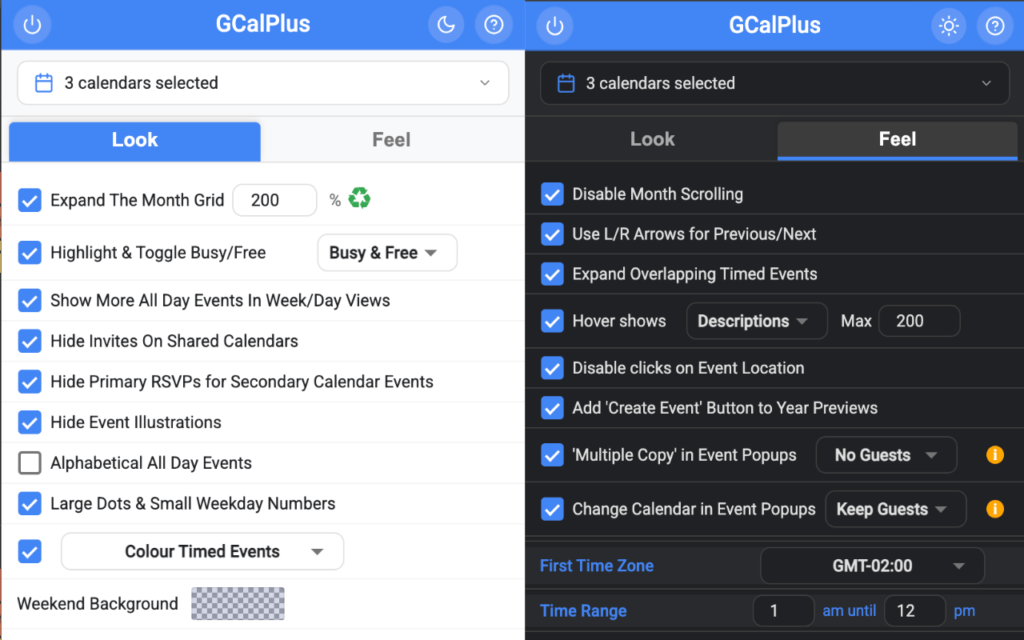
It doesn’t replace your calendar workflow. It layers on top of it: expand month boxes to show more events, hide morning hours you never use, highlight busy dates in the month grid, and get a breakdown of how your calendar time is allocated.
Key Features
- Time allocation insights: bar chart, pie chart, and time chart
- Auto-place events into correct calendars based on user-defined rules
- Event name autocomplete
- Condense the calendar UI to show more events per day
- Ghost events: semi-transparent, non-interactive event display
- Data export
- Highlight busy dates in the month grid
- Expand month boxes to show more all-day events
- Hide morning hours to focus on working hours
- Color weekends differently for visual clarity
- Hover to read full event descriptions without clicking
Pricing
| Plan | Price |
|---|---|
| Free | $0 — no paid tier exists |
Limitations
- Occasional page refresh issues reported when adding or editing events
- Some features temporarily break when Google rolls out Calendar UI updates (developer typically patches within a few days)
- Requires Google account OAuth permissions for certain features
- Chrome Web Store rating: 3.9/5
Best for: Power users who want more information density and customization in Google Calendar without paying for a full add-on.
5. Shade Calendar: Best for Visual Time Blocking
Shade Calendar is a lightweight free Chrome extension that does exactly one thing: it lets you color-shade specific recurring time blocks in Google Calendar. If you practice time blocking, Shade makes your structure immediately visible without creating fake calendar events.
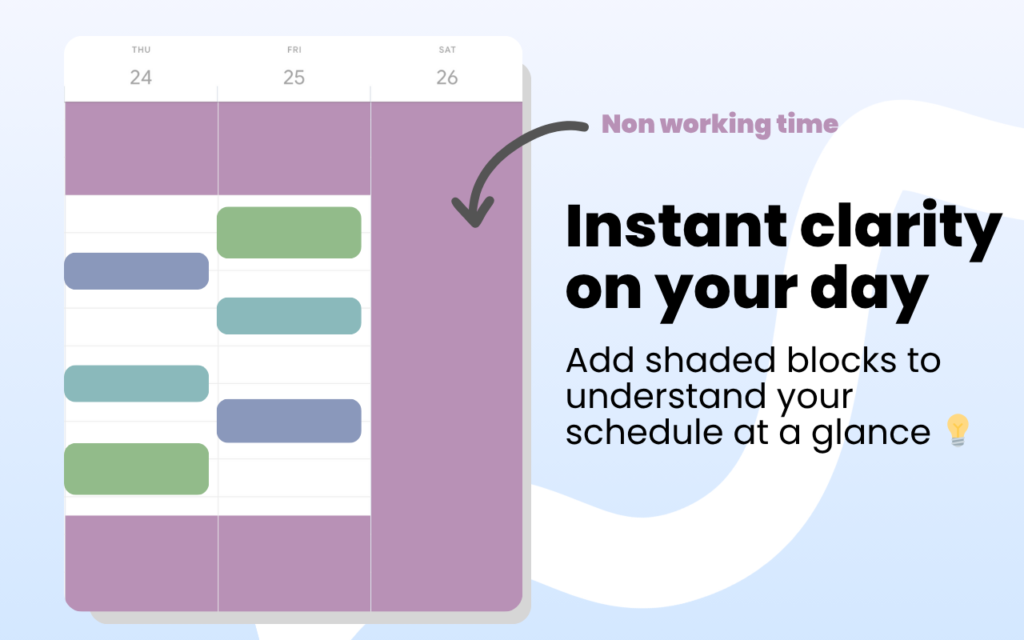
You set recurring shaded blocks per day of the week, pick a color, and those time ranges stay visually highlighted across your day, week, and 4-day views. No event clutter, no system to learn.
Key Features
- Color-code recurring time blocks in day, week, and 4-day views
- Set a unique shading schedule per day of the week
- Works with multiple calendars including shared ones
- No data collection — fully privacy-first design
- No setup required beyond choosing your time ranges and color
Pricing
| Plan | Price |
|---|---|
| Free | $0 — developer accepts voluntary support via Buy Me a Coffee |
Limitations
- Does not work in the “Find a Time” dialog within Google Calendar
- Only one color choice for shading
- Cannot set multiple shaded blocks per day — limited to one block per day
- Relatively small user base (~4,000 users)
Best for: Anyone who practices time blocking and wants their schedule structure to be visually obvious at a glance without adding real events.
6. Google Calendar Event Checker: Best for Marking Events as Done
Google Calendar doesn’t let you check off events the way a to-do list does. The Google Calendar Event Checker fills that gap. Install it, open a calendar event for editing, and you’ll see a completion button — click it and the event gets a checkmark, emoji, or strikethrough, with a timestamp automatically saved in the event description.
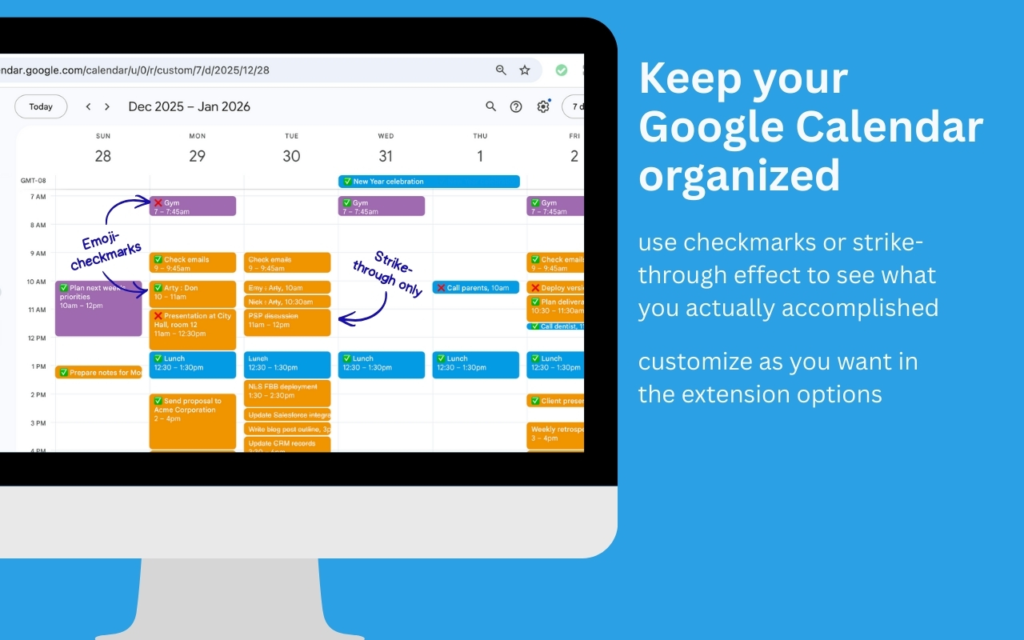
It’s a small addition, but for people who use their calendar as a task tracker, it’s surprisingly useful. The free version works immediately after install with no sign-in required. The premium version adds more convenience: mark events from the popup dialog without going into edit mode, and view a dashboard of today’s events.
Key Features
- Free: customizable completion marks — emojis (✅ or ❌), unicode checkmark (✓), or strikethrough
- Free: automatic timestamp saved in the event description when marked
- Free: works immediately after install — no sign-in required
- Premium: one-click mark from event dialog popup (no editing required)
- Premium: daily events dashboard in the extension popup
- Premium: mark events from any tab without opening Google Calendar
- Premium: up to 5 custom checkmark slots
- Premium: multi-calendar support
- Supports Chrome, Edge, Brave, Opera, and other Chromium browsers
- Privacy-oriented: does not see or store your calendar event data
Pricing
| Plan | Price | Details |
|---|---|---|
| Free | $0 | Core features, no sign-in required |
| Premium | Not publicly listed | Free trial available (no credit card); billing via Stripe; cancel anytime |
Limitations
- Free version requires opening the event edit page to mark completion
- Cannot mark certain event types (birthday calendar, working locations, shared calendars without edit permission)
- Exact premium pricing not displayed publicly — requires sign-up to see
Best for: Professionals who use Google Calendar as a combined calendar and task tracker and want a simple way to mark events as done.
7. Agenda Hero: Best for Converting Text to Calendar Events
Agenda Hero is an AI-powered Chrome extension that converts unstructured text — or images and PDFs — into calendar events in one click. You’re reading an email, a LinkedIn post, a webpage, or a PDF, and it mentions a meeting time. Instead of manually copying details into Google Calendar, you select the text, click the ‘Add to Calendar’ button that appears inline, and the AI handles the rest.
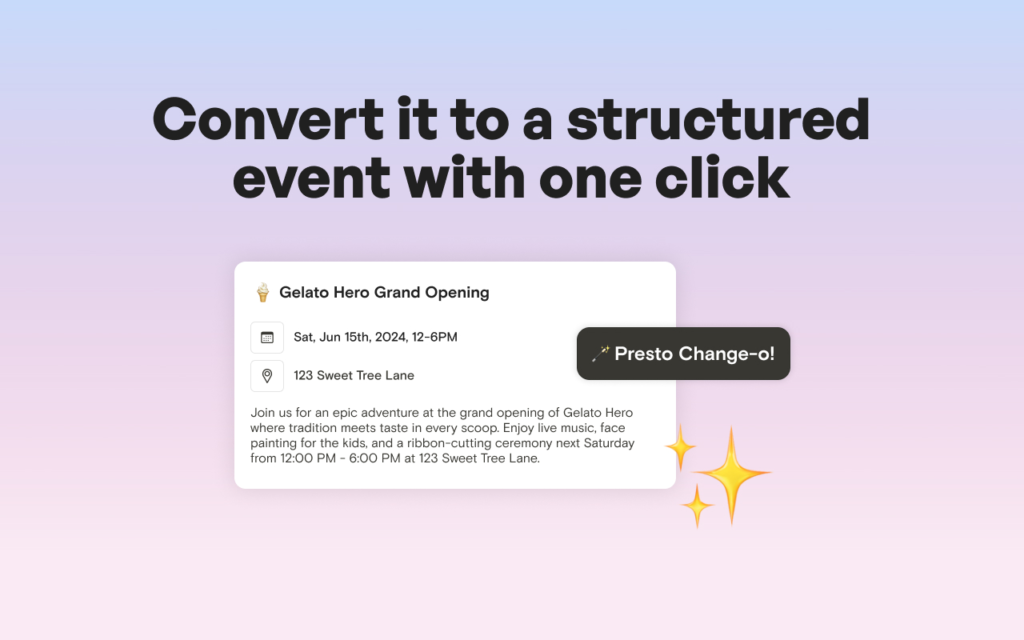
It supports Google Calendar, Apple Calendar, Outlook, Office 365, and Yahoo — and handles recurring events, multiple events from a single selection, and screenshot-based event capture.
Key Features
- Select text on any webpage → AI converts to structured calendar event → add to calendar in one click
- Right-click option available (disables the inline button for cleaner browsing)
- Side panel for typing prompts or uploading images
- Supports Google Calendar, Apple Calendar, Outlook, Office 365, and Yahoo
- Handles multiple events from a single text prompt
- Recurring event support: daily, weekly, bi-weekly, monthly, and annual
- Converts screenshots and images containing event information
- Multi-page PDF support
- Magic Chat: conversational AI editing of multiple events
- Works on Gmail, LinkedIn, Facebook, Twitter/X, and other platforms
Pricing
| Plan | Price |
|---|---|
| Free | $0 — all current features are free; advanced paid features are planned but not yet available |
Limitations
- In-page “Add to Calendar” button can feel intrusive on some websites (can be disabled)
- Some calendar platforms only copy the first date of recurring events, not full recurrence rules
- Smaller, newer extension with a limited user base
Best for: Anyone who frequently finds event information scattered across emails, websites, PDFs, and social media and wants to add it to their calendar without manual data entry.
8. Calendar Automator: Best for AI-Powered Weekly Planning
Calendar Automator takes a different approach: instead of helping you manage events you already have, it helps you plan the week ahead. You give it your task list and goals, and the AI finds conflict-free time slots in your Google Calendar and schedules them automatically — no manual calendar tetris.
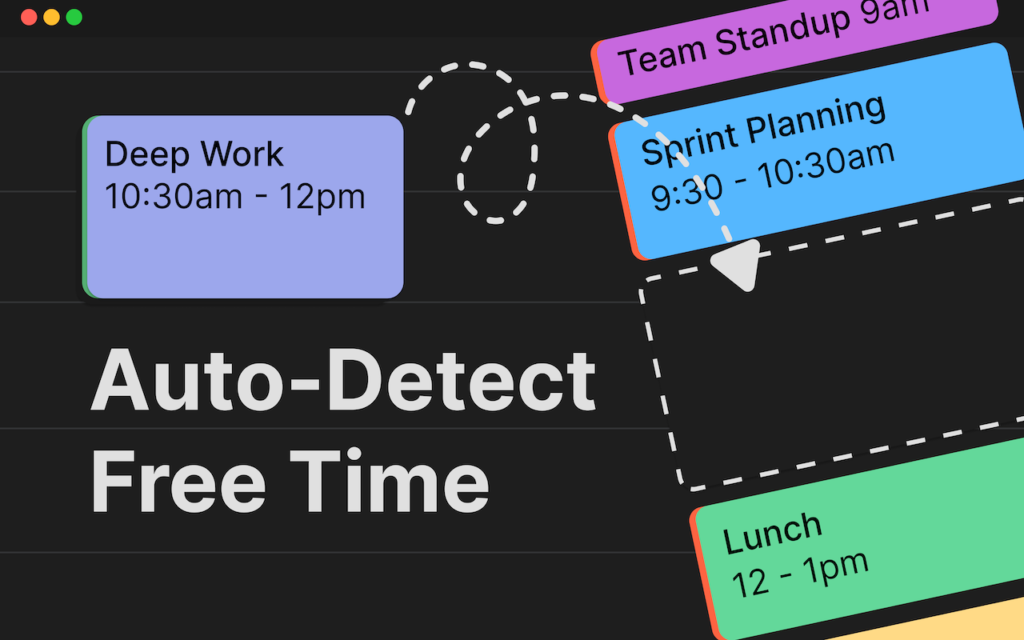
The result appears directly in Google Calendar with proper titles, times, and colors, syncing across all your devices. The developer reports an average of 4 minutes to plan a full week.
Key Features
- AI-powered automatic weekly planning: input tasks, AI schedules them into available time slots
- Smart conflict detection: finds optimal times based on your existing calendar and energy patterns
- One-click Google Calendar sync: planned events appear with proper titles, times, and colors
- Smart event templates for consistent scheduling
- Dark and light theme toggle
- Calendar data stays in your Google account — no server-side calendar data storage
- Works on Chrome, Edge, and Chromium-based browsers
Pricing
| Plan | Price |
|---|---|
| Free | $0 — no credit card or sign-up required (confirmed on official website as of March 2026) |
Limitations
- Relatively new and small user base (250+ users at time of research)
- No iOS or Android app — relies on Google Calendar app after sync
- No team or collaboration features
Best for: Busy professionals who struggle with manually scheduling tasks around their existing meetings and want an AI to handle the planning.
Best Google Workspace Add-Ons for Google Calendar
Unlike Chrome extensions, Google Workspace add-ons install directly into Google Calendar as a sidebar panel. They work across devices — not just Chrome — and are installed through the Google Workspace Marketplace.
9. Reclaim.ai: Best for AI-Powered Smart Scheduling
Reclaim.ai is one of the most sophisticated Google Calendar tools available. It goes far beyond simple scheduling: the AI actively manages your calendar in real time, protecting time for focus work, rescheduling tasks when conflicts arise, finding the best meeting times for all attendees, and defending your habits and personal routines.
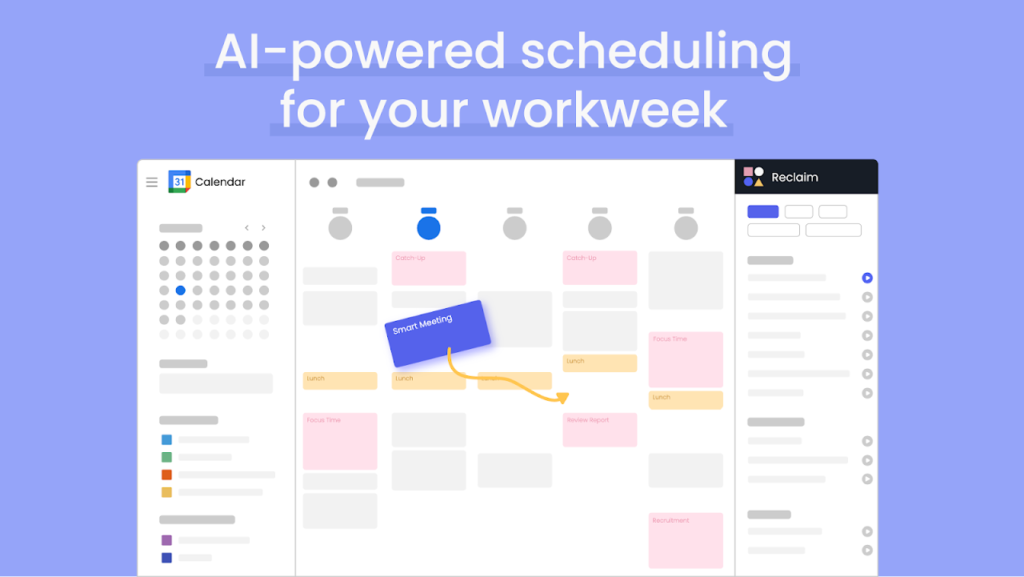
The idea is that your calendar should reflect your priorities — not just your meetings. Reclaim makes that happen automatically, adapting as your week changes. Outlook support was added in August 2025, making Reclaim viable for hybrid Google/Microsoft environments.
Key Features
- Focus Time: AI protects flexible deep work blocks and moves them around conflicts automatically
- Tasks: auto-schedules tasks with deadlines into your available time
- Habits: flexibly defends recurring routines (lunch, exercise, etc.) around your schedule
- Smart Meetings: finds the best available time for all attendees
- Scheduling Links: AI-powered availability sharing pages
- Calendar Sync: blocks availability across multiple calendars to prevent double-booking
- Buffer Time: auto-schedules breaks and travel time around meetings
- No-Meeting Days: protects entire days from being scheduled
- Time Tracking: analyzes how time is actually being spent
- Works with Google Calendar and Microsoft Outlook (Outlook added August 2025)
- Integrations: Slack, Zoom, Google Tasks, Todoist, Asana, Jira, ClickUp, Linear, Raycast
Pricing
| Plan | Monthly | Annual (per user/mo) | Key Limits |
|---|---|---|---|
| Lite (Free) | $0 | $0 | 2 calendars, 3 habits, 1 scheduling link, 3-week scheduling range |
| Starter | $10/user | $8/user | Up to 10 users; unlimited habits, calendars & syncs; 8-week range |
| Business | — | $12/user | Up to 100 users; most popular plan |
| Enterprise | — | $18/user | 100+ users; SSO, SCIM provisioning, dedicated support |
14-day free trial of the Business plan is available for all new users.
Limitations
- No native iOS or Android mobile apps
- Does not support iCloud Calendar natively
- Outlook integration has minor limitations (reduced accuracy with non-Reclaim attendees)
- Free plan is significantly restricted in scheduling range and features
Best for: Knowledge workers, executives, and teams who want their calendar to actively protect their priorities — not just record their meetings.
10. SyncThemCalendars: Best for Cross-Platform Calendar Sync
If you run multiple calendars across different platforms — a personal Google Calendar, a work Outlook calendar, an Apple Calendar — SyncThemCalendars keeps them in sync and prevents double-booking.
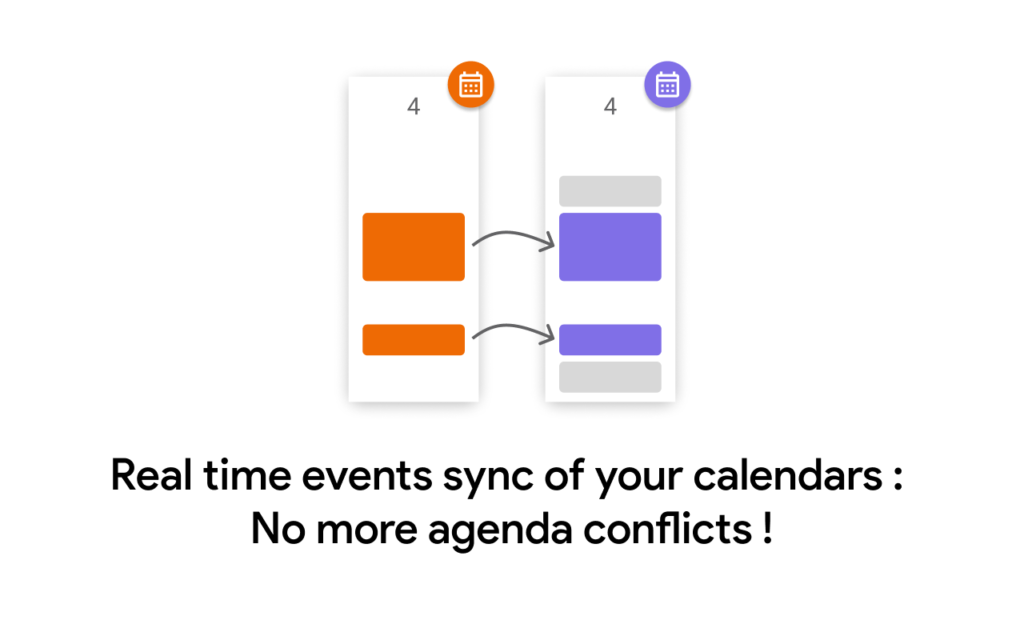
It supports one-way and two-way sync between Google Calendar, Microsoft Outlook/Office 365, and Apple Calendar (iCloud). Crucially, you control what information appears in the synced copy — for example, syncing a work event to your personal calendar as a generic “Busy” block without exposing the meeting title or details.
Key Features
- Real-time synchronization between calendars
- One-way or two-way sync options
- Supports Google Calendar, Microsoft Outlook/Office 365, and Apple Calendar (iCloud)
- Full control over what details appear in the synced copy (hide or modify title, description, location, visibility, reminders)
- Unlimited events
- Unlimited number of calendars and accounts across platforms
- Pricing based on number of sync pairs — not number of accounts or calendars
Pricing
| Plan | Annual Price (per month) | Sync Pairs | Users |
|---|---|---|---|
| Individual | $3.99/month | Up to 5 | 1 |
| Small Business | $7.99/month | Up to 16 | 1 |
| Power | $17.99/month | Up to 36 | 1 |
| Corporate/Team | Custom | Custom | Multiple |
All plans billed annually. Free trial available. Source: syncthemcalendars.com/pricing
Limitations
- No API available
- Can become complex to manage when syncing 5+ accounts
- Occasional sync glitches reported (support noted as responsive)
Best for: Professionals who maintain separate personal and work calendars across different platforms and need them to stay automatically in sync.
11. SMS Reminder for Google Calendar: Best for Appointment-Based Businesses
SMS Reminder is a Google Workspace add-on built for businesses that book appointments — therapists, salons, tutors, accountants, real estate agents, personal trainers. It adds a sidebar to Google Calendar from which you can send SMS text reminders to clients before their appointments, directly from the event.
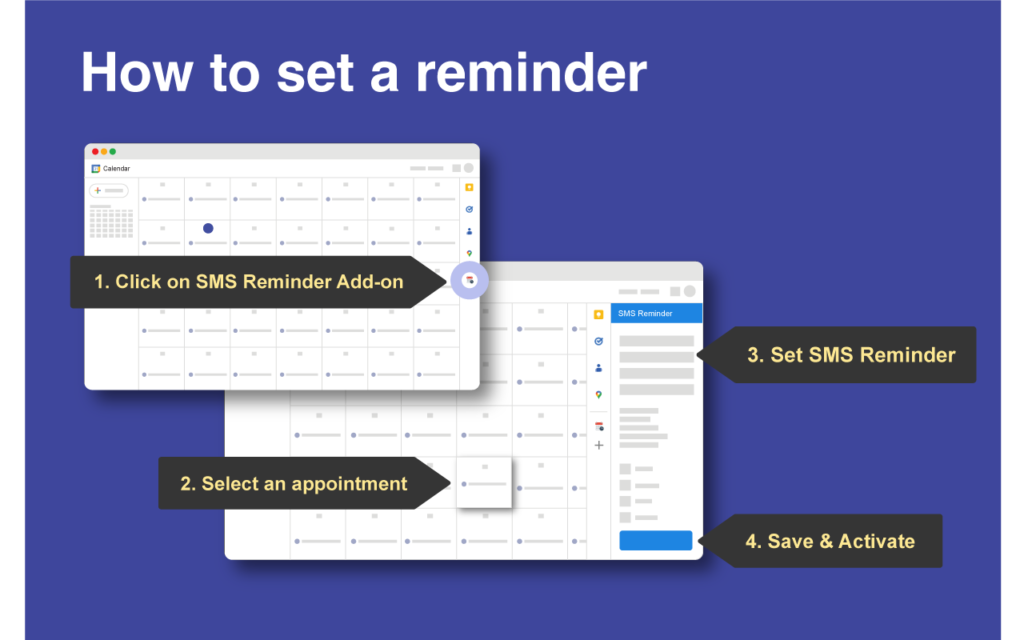
The app auto-populates the date and time from the event and lets you customize the message template with dynamic fields. There’s also an appointment confirmation feature: clients respond via a web link, and the calendar event changes color — yellow for pending, green for confirmed, red for cancelled.
Key Features
- Send SMS reminders directly from the Google Calendar sidebar
- Auto-populates date and time from the event
- Customizable message templates with dynamic data: {date}, {time}, {location}, {title}, and more
- Appointment confirmation: client responds via a web link; event color updates (Yellow = Pending, Green = Confirmed, Red = Cancelled)
- Semi-automatic mode: add a phone number with hashtags in the event title/description to set reminders from any calendar app including mobile
- Web dashboard to manage all reminders in one place
- Multi-timezone support: send reminder in the recipient’s local time
- Supports US, Canada, UK, Australia, Europe, and many more countries
- 30-day money-back guarantee for new subscriptions
Pricing
| Plan | Monthly | Annual (per month) | Reminders/Month | Calendars | Users |
|---|---|---|---|---|---|
| Free | $0 | $0 | 25 (one time) | — | — |
| Basic | $19 | $17 | 50 | 2 | 1 |
| Starter | $29 | $26 | 100 | 5 | 1 |
| Business | $45 | $40.50 | 250 | 10 | 2 |
| Enterprise | $75 | $67.50 | 500 | 20 | 5 |
| Premium | $125 | $112.50 | 1,000 | Unlimited | 10 |
Save 10% on all annual plans. No credit card required for the free tier. Pricing in USD; local pricing available for EUR, CAD, AUD, and GBP. Source: smsreminder.app
Limitations
- Not fully automatic — user must manually select each appointment and activate the reminder (the hashtag method partially automates this)
- Pricing is based on reminders consumed per month, not per appointment — multiple phone numbers and multiple reminders per appointment each consume additional reminders
- Long messages, messages with emojis, or messages with URLs consume more than one reminder
- Some countries are not supported (full list on smsreminder.app)
- Not suitable for HIPAA-covered entities
Best for: Appointment-based businesses who want to reduce no-shows by texting clients directly from Google Calendar.
How to Choose the Right Tool
Not every tool on this list is for everyone. Here’s a quick guide based on your role:
| If you are… | Start with… |
|---|---|
| An executive assistant managing a C-suite calendar across multiple cities | Overlappr |
| A salesperson booking meetings with global prospects | Overlappr |
| A recruiter coordinating multi-timezone interviews | Overlappr |
| Someone who wants better calendar notifications without opening Google Calendar | Checker Plus for Google Calendar |
| A consultant, agency owner, or chief of staff who needs to track and report on time | Tackle |
| A knowledge worker who wants their calendar to protect focus time automatically | Reclaim.ai |
| Someone who maintains personal and work calendars on different platforms | SyncThemCalendars |
| A service-based business owner who wants to reduce no-shows | SMS Reminder for Google Calendar |
| Someone who wants to visually block their time without creating fake events | Shade Calendar |
| A power user who wants more information density and customization | GCalPlus |
Final Thoughts
Google Calendar is the starting point, not the finish line. The right extension or add-on can save you hours every week, eliminate entire categories of scheduling errors, and make your calendar work the way your actual workday does — not just as a list of meetings.
The tools on this list solve real, specific problems. If you’re not sure where to start, pick the one that addresses your most frequent daily frustration and try it for a week. Most of them are free, and the ones that aren’t offer free trials.
If you work across time zones and spend even a few minutes per day on timezone math or back-and-forth scheduling emails, Overlappr is worth trying first. It’s one of those tools that’s hard to explain until you’ve used it — and then hard to go back from.